Logo3D Camera Control
  • Pricing
Logo3D Camera Control

Generate consistent multi-angle views from a single reference image.

Tools
  • Camera Angles
  • Qwen Image Edit
  • Product Multiple Views
  • GPT Image 2
  • Camera Control for Video
  • Character Turnaround
  • Pricing
Legal
  • Privacy Policy
  • Refund Policy
  • Terms of Service
© 2026 3D Camera Control. All Rights Reserved.
Powered by MiniMax H3 Max

H3 Max Camera Control Video Generator

Upload one image and plot the camera's path keyframe by keyframe. H3 Max uses that trajectory to create a camera-led video while aiming to keep the scene stable and recognizable.

H3 Max camera control video generator

Click, drop, or paste a first frame

JPEG, PNG or WebP · Up to 10 MB

Azimuth
RightBackLeftFrontRightBackLeft
Elevation
BottomLowEye LevelHighTop
Distance
CloseFar
0:00.0 / 0:05.0

Sign in to generate videos

Closing Orbit

Tighten the frame as you circle, pulling attention onto the subject.

Features

AI camera control video, done right

The goal is a more directed clip: use a stable reference scene, guide the camera, and reuse the same trajectory settings across different products or frames.

Time freeze

Camera-led motion, with a steadier scene

Upload one frame and guide the camera around people, liquids, or objects caught mid-air. The model is designed to limit scene motion and create cleaner parallax, though fine details may still vary between generations.

Keyframe control

Keyframes for more direct control

Set azimuth, elevation, distance, and time for up to 9 keyframes on a timeline. Give the model a structured path you can preview and adjust, rather than relying on a text prompt alone.

Easy start

Presets that teach you the craft

Ten trajectory presets fill the timeline with a working camera move in one click. Load a preset, watch the result, then nudge a keyframe or two until the shot feels like yours.

Up to 768P

Flexible output for real projects

Pick 5 to 15 seconds and up to 768P output for product previews, social feeds, or pitch decks. The credit cost appears on the generate button before submission, and reserved credits are released automatically when a run is confirmed failed.


AI camera control video freezing a coffee pour while the camera moves

Use Cases

Where H3 Max Camera Control earns its keep

One starting frame can become a more directed shot. Here are four practical ways creators and teams can use it.

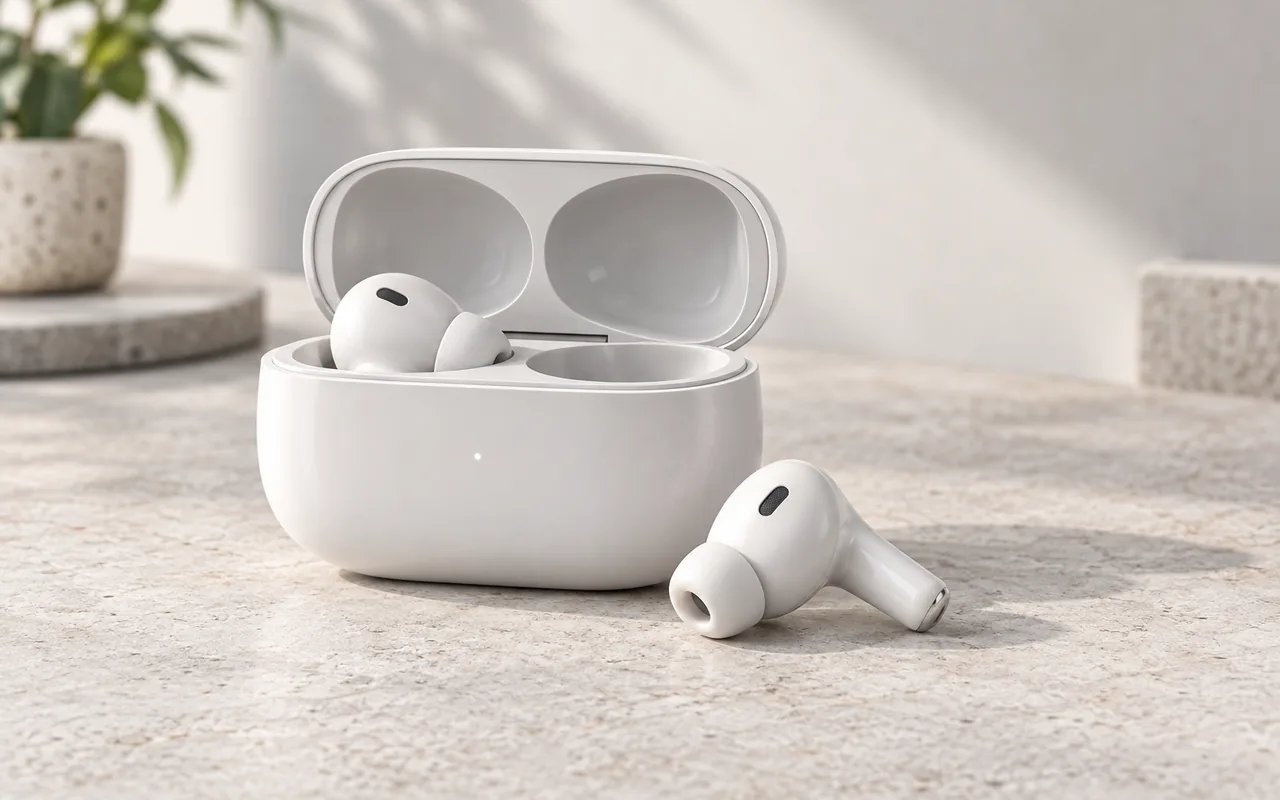
360 product videos for ecommerce

Orbit a sneaker, a watch, or a coffee bag to generate a 360-style product video from a single photo. Use it for product concepts, ads, and launch teasers, and review generated details before publishing.

“Create a turntable-style view from one starting image.”

Make a video like this
Front three-quarter 360 product video view of wireless earbuds and a charging case for ecommerce

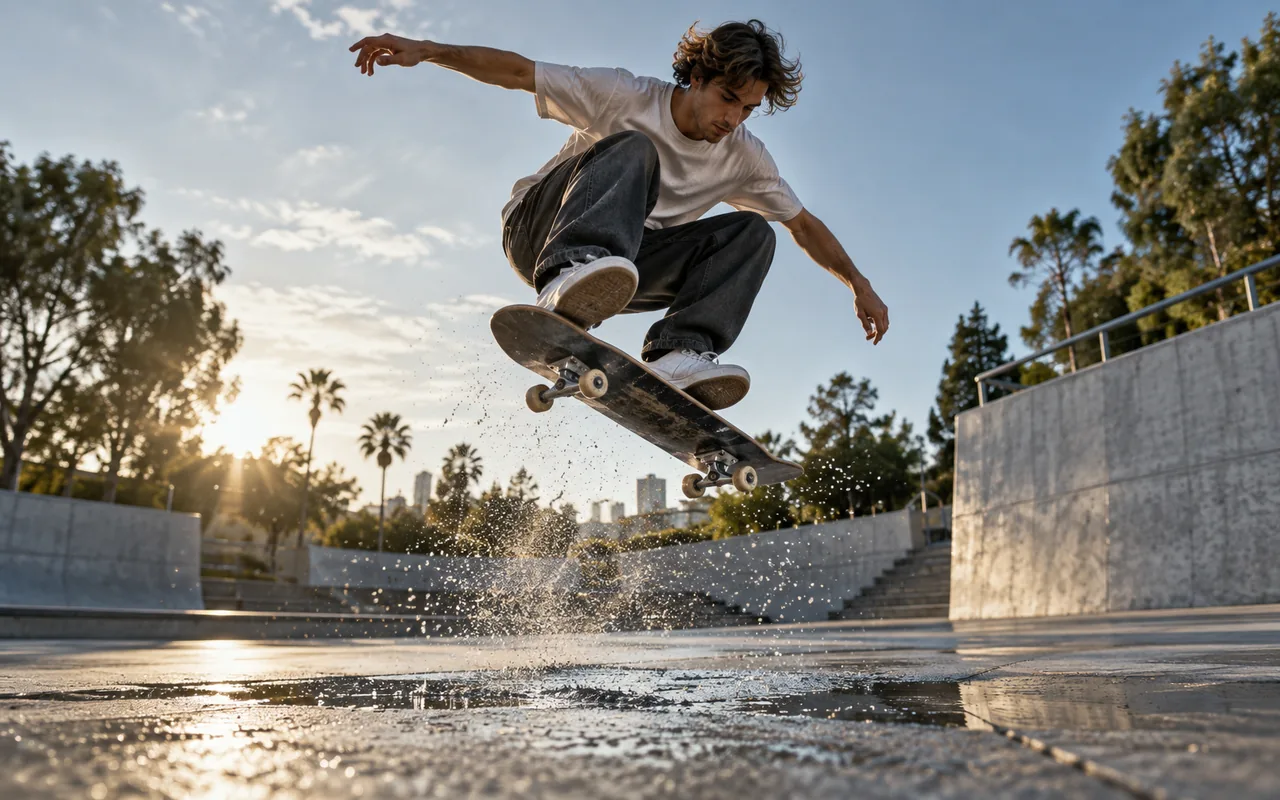
Time freeze effect for social clips

Start with a splash, a jump, or a pour caught in mid-air and guide the camera through the moment. The result can create a cinematic time-freeze effect for social content.

“Create a VFX-style look from one suspended moment.”

Make a video like this
Time freeze camera control video of a skateboarder suspended over a splash

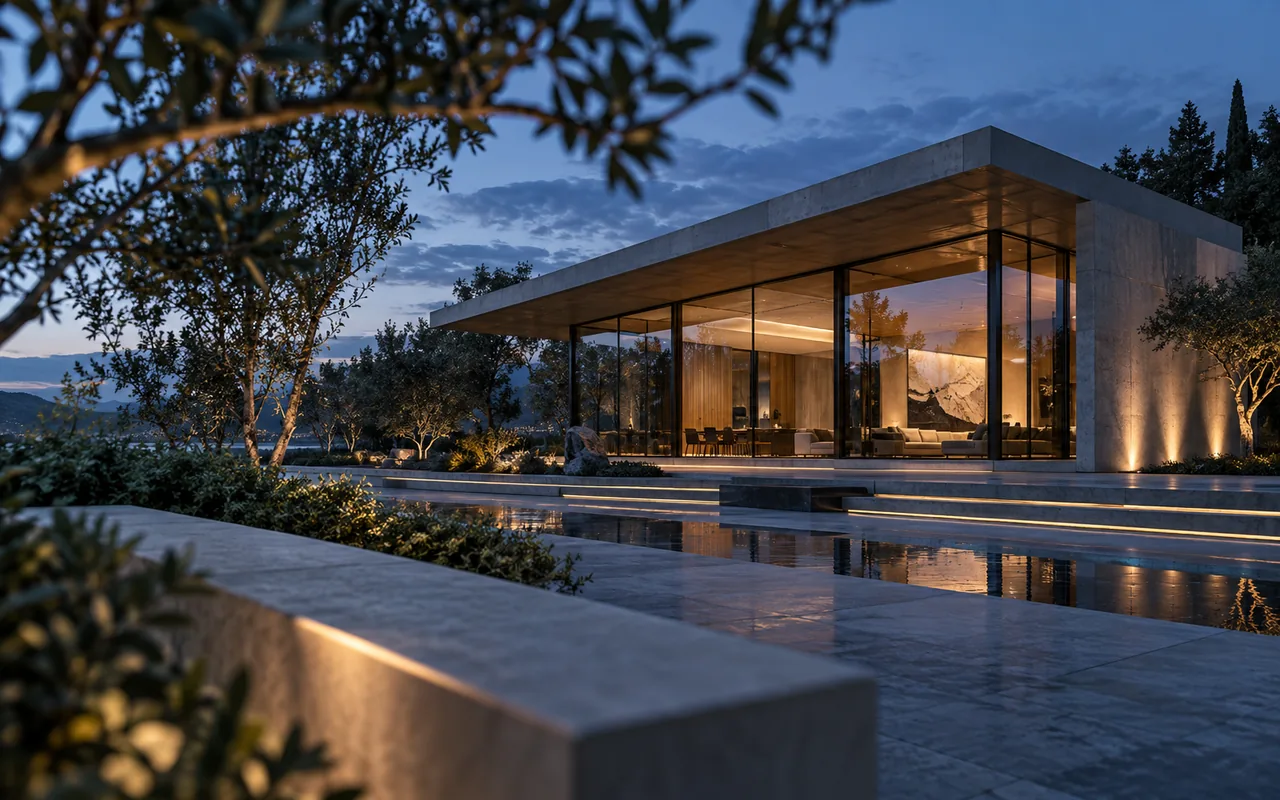
Architecture orbit for spaces and buildings

Arc around a building render or an interior frame to show depth, light, and layout. An architecture orbit turns a still visualization into a guided look around the design.

“A moving viewpoint can make depth and layout easier to explore.”

Make a video like this
Architecture orbit video frame of a modern glass pavilion

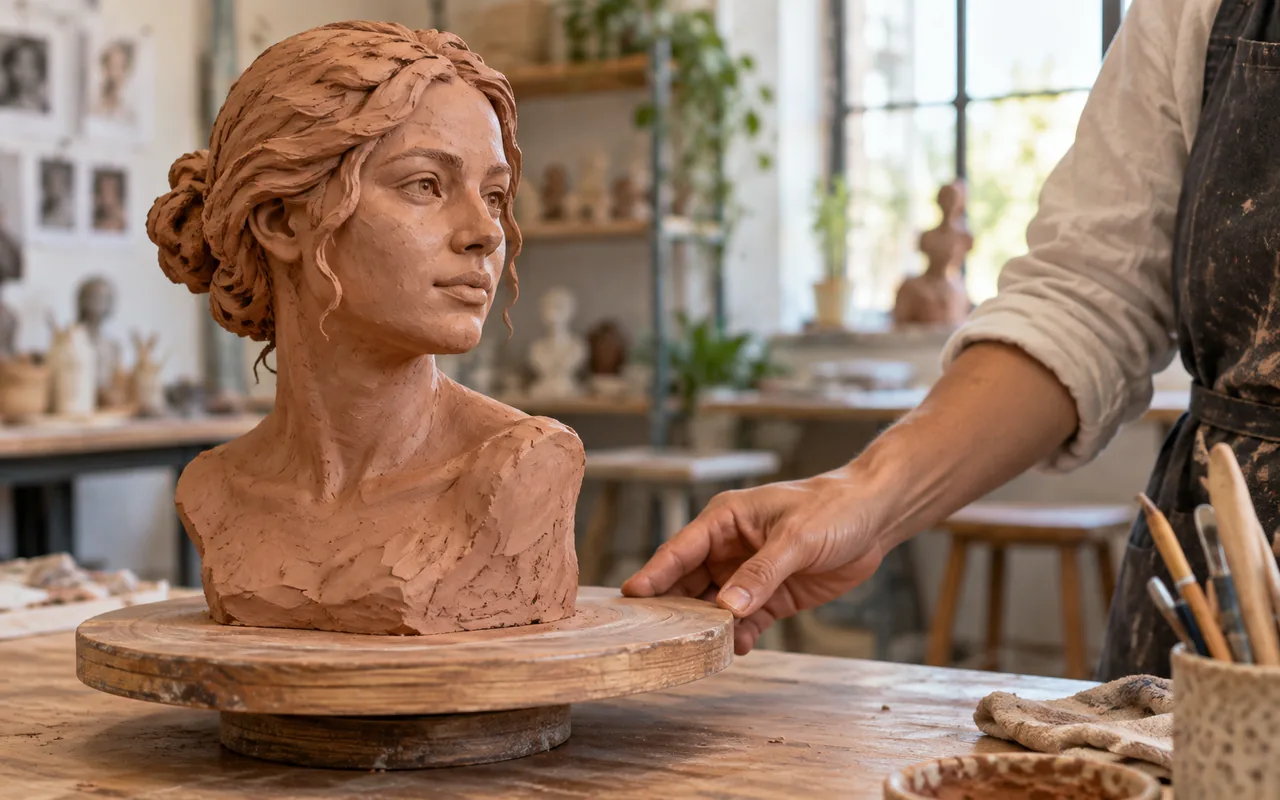
Teaching demos with changing viewpoints

Circle an object, a setup, or a scene while you narrate. Teachers and course creators can add a visual walkthrough from a single reference image without filming from every angle.

“A moving viewpoint can complement a flat diagram.”

Make a video like this
Teaching demo showing an instructor turning a ceramic bust on a wooden turntable

How It Works

How to control camera movement in an AI video

Three steps from a still image to a directed camera move.

1
Step 1

Upload your first frame

Drop in a JPEG, PNG, or WebP image. Scenes with real depth and a clear subject tend to produce more stable results.

2
Step 2

Plot the camera path

Start from a trajectory preset, then adjust each keyframe's angle, height, distance, and time.

3
Step 3

Generate and download

Choose a duration and resolution, generate, then preview the clip and download the mp4.

Why It Works

Dynamic 3D camera control instead of prompt luck

Prompt-only AI video workflows can leave much of the camera movement to the model. H3 Max Camera Control lets you supply a keyframed path while using your image as a stable visual reference.

  • The model is designed to use your image as a stable moment and limit changes to people and objects.
  • Camera-led parallax can help preserve faces, hands, and fine textures while the viewpoint changes.
  • You can reuse the same keyframed trajectory settings across a whole product line.
  • Configure, preview, and download from your browser, with generation processed online and nothing to install.
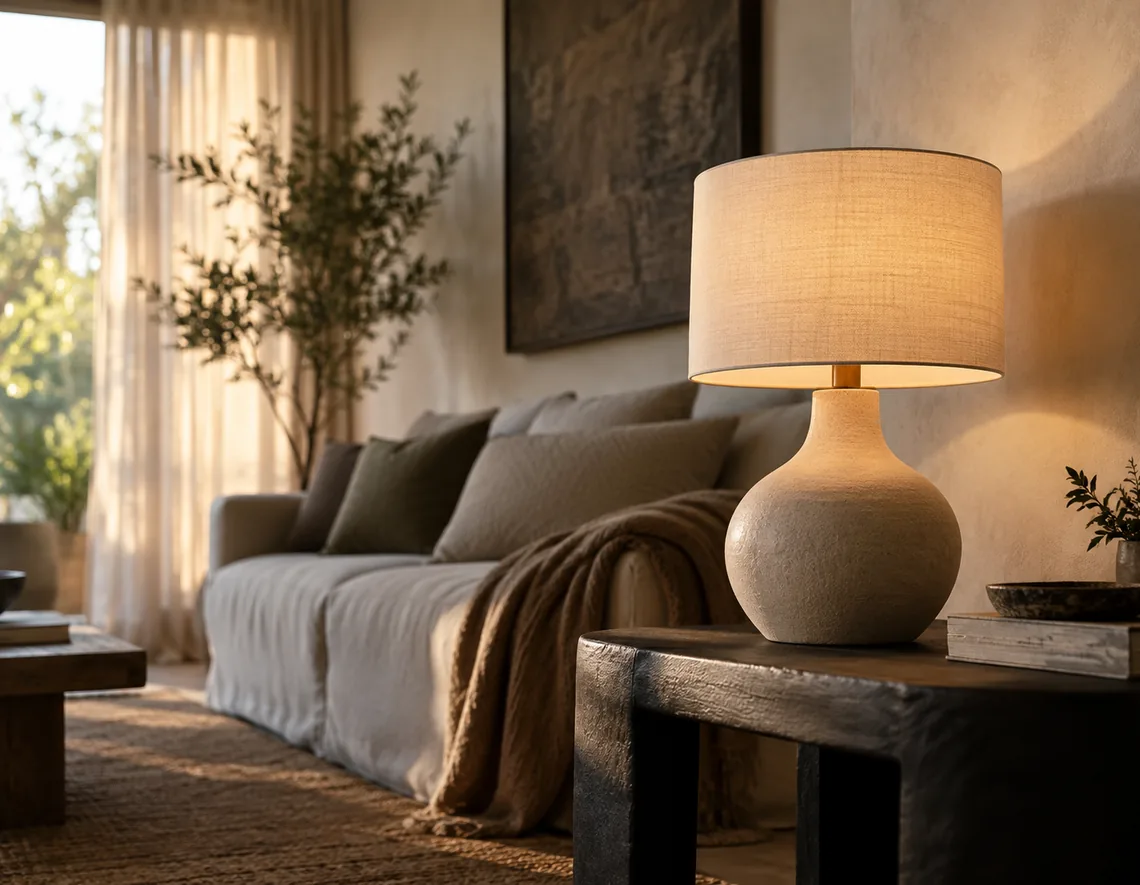
Natural commercial camera control frame of a ceramic table lamp from a deliberate three-quarter angle

FAQ

Common questions about H3 Max Camera Control

What is H3 Max Camera Control?

H3 Max Camera Control is an AI camera control video generator built on MiniMax's H3 Max model. You upload one image and plot a camera path with keyframes. The model then creates a camera-led video while aiming to keep the scene stable. It is made for product reveals, time-freeze clips, and directed camera moves from a single still.

How is this different from a normal AI video generator?

Prompt-only AI video workflows can leave more camera movement decisions to the model. Here you provide a structured path with keyframes or presets. Results can still vary, but the added controls make the intended move easier to reproduce and can help subjects retain their shape, pose, and textures.

Is H3 Max Camera Control free to use?

It is available to paid users and does not include a daily free quota. Clips start at 80 credits for a 5-second 480P video (16 credits per second at 480P, 25 at 768P), and the current cost appears on the generate button before submission.

What happens if my video generation fails?

Credits are reserved when you submit a generation. If a run is confirmed as failed, those reserved credits are released automatically and the failed run is not charged. Temporary network or status-check errors may need to be resolved before the final generation status is known.

Can I use the generated videos commercially?

Yes. You may use videos generated through 3D Camera Control in commercial projects, subject to applicable law and our Terms of Service. You are responsible for reviewing each output and making sure your source images and intended use do not infringe third-party copyrights, trademarks, or publicity rights.

Do I need video editing or 3D skills?

No. Upload an image, click a preset, and generate. If you want finer control, every keyframe's angle, height, distance, and timing is editable in the timeline, but none of it requires a 3D or editing background.

What images work best for camera control videos?

Scenes with real depth, subjects caught mid-motion like splashes or jumps, and people in physically stable poses often produce a clearer freeze effect. Flat or blurry images tend to produce weaker parallax, so start with your sharpest frame.

How long and how sharp can the videos be?

Durations run 5, 8, 10, 12, or 15 seconds at 480P or 768P. For social posts and web previews, 480P may be sufficient; 768P provides more detail for product pages and presentations.

Create your first AI camera control video

Start with one image, plot the camera path, and generate a clip that explores perspectives beyond the original frame.

Direct your first shot